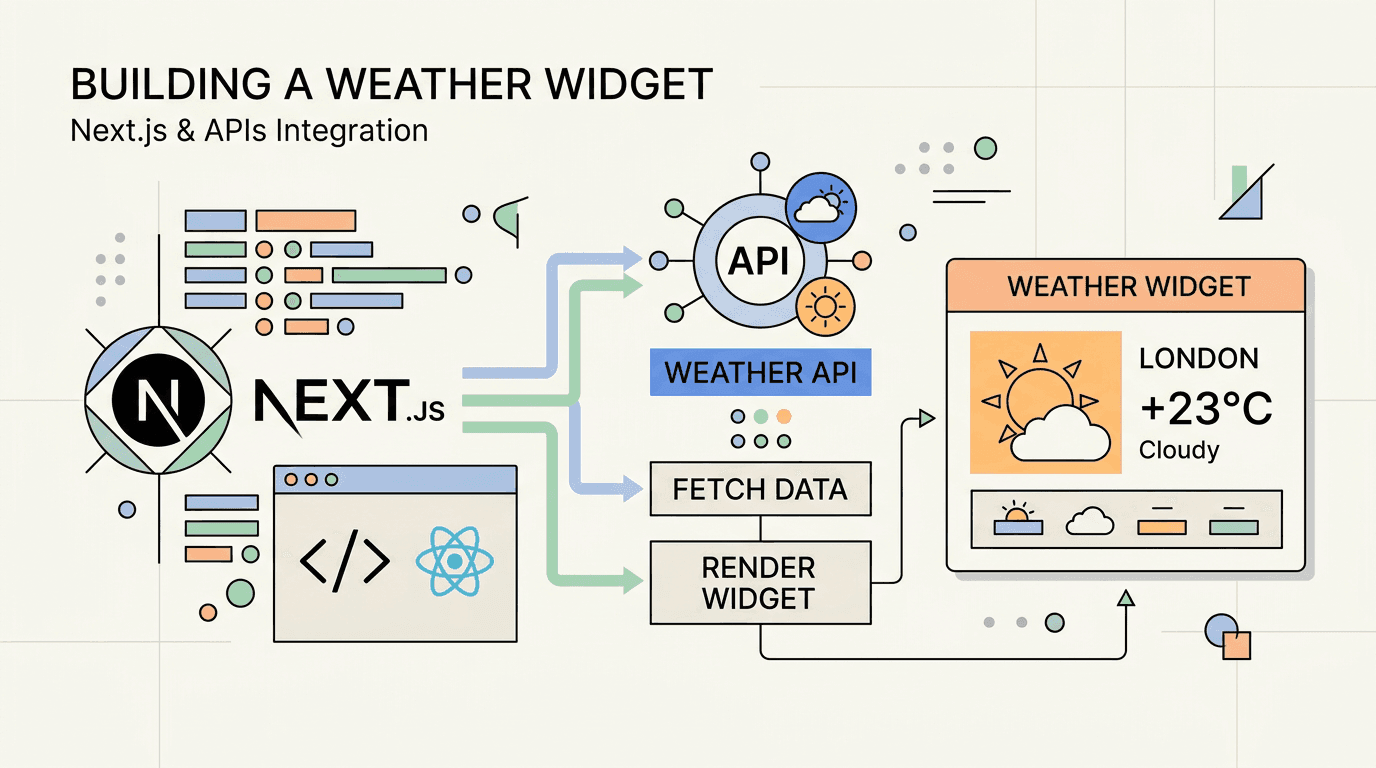
Open-Meteo is one of the few production-ready weather APIs that works with no API key, no billing setup, and no rate-limit math for typical sites. Combined with Next.js server components and built-in fetch caching, you can ship a real weather widget in about 50 lines of code.
This tutorial walks through a server-rendered widget that shows the current temperature, wind speed, and a short label for any city. We will use Istanbul as the example, but the same code works for any latitude/longitude pair.
What you are building
A <WeatherWidget /> server component that:
- Fetches current weather from Open-Meteo for a given location.
- Caches the response for 10 minutes via Next.js fetch caching.
- Renders temperature, wind speed, and a status label.
- Returns
nullon failure so a missing API call does not break the page.
Prerequisites
- A Next.js 14+ app with the App Router.
- TypeScript (the example uses
.tsx, but plain JS works too). - No API key. Open-Meteo is keyless.
Step 1 — Define the API call
Open-Meteo's forecast endpoint takes a latitude, longitude, and a list of current variables. For a widget we want temperature, wind speed, and a weather code.
// lib/weather.ts
type CurrentWeather = {
  temperature: number;
  windSpeed: number;
  weatherCode: number;
};

export async function getCurrentWeather(
  latitude: number,
  longitude: number,
): Promise<CurrentWeather | null> {
  const url = new URL("https://api.open-meteo.com/v1/forecast");
  url.searchParams.set("latitude", String(latitude));
  url.searchParams.set("longitude", String(longitude));
  url.searchParams.set("current", "temperature_2m,wind_speed_10m,weather_code");

  try {
    const response = await fetch(url, {
      next: { revalidate: 600 },
    });
    if (!response.ok) return null;

    const payload = await response.json();
    const current = payload?.current;
    if (!current) return null;

    return {
      temperature: Number(current.temperature_2m),
      windSpeed: Number(current.wind_speed_10m),
      weatherCode: Number(current.weather_code),
    };
  } catch {
    return null;
  }
}
The key detail: next: { revalidate: 600 } tells Next.js to cache the response for 600 seconds (10 minutes). Open-Meteo will only be hit once per cache window across all your visitors.
Step 2 — Map weather codes to labels
Open-Meteo uses WMO weather codes. For a widget you don't need all 100+ — a small mapping is enough.
// lib/weather-codes.ts
const WEATHER_CODE_LABELS: Record<number, string> = {
  0: "Clear",
  1: "Mostly clear",
  2: "Partly cloudy",
  3: "Overcast",
  45: "Foggy",
  48: "Foggy",
  51: "Light drizzle",
  53: "Drizzle",
  55: "Heavy drizzle",
  61: "Light rain",
  63: "Rain",
  65: "Heavy rain",
  71: "Light snow",
  73: "Snow",
  75: "Heavy snow",
  80: "Showers",
  95: "Thunderstorm",
};

export function describeWeatherCode(code: number): string {
  return WEATHER_CODE_LABELS[code] ?? "Unknown";
}
For a production widget you would extend this list with the full WMO mapping from the Open-Meteo docs.
Step 3 — Build the server component
// components/weather-widget.tsx
import { getCurrentWeather } from "@/lib/weather";
import { describeWeatherCode } from "@/lib/weather-codes";

type WeatherWidgetProps = {
  city: string;
  latitude: number;
  longitude: number;
};

export async function WeatherWidget({
  city,
  latitude,
  longitude,
}: WeatherWidgetProps) {
  const weather = await getCurrentWeather(latitude, longitude);
  if (!weather) return null;

  return (
    <div className="rounded-lg border p-4 text-sm">
      <div className="text-xs uppercase text-muted-foreground">{city}</div>
      <div className="mt-1 text-2xl font-semibold">
        {Math.round(weather.temperature)}°C
      </div>
      <div className="mt-1 text-muted-foreground">
        {describeWeatherCode(weather.weatherCode)} · {Math.round(weather.windSpeed)} km/h
      </div>
    </div>
  );
}
The component is async because it awaits the data fetch — that is the entire point of server components.
Step 4 — Use it in a page
// app/page.tsx
import { WeatherWidget } from "@/components/weather-widget";

export default function HomePage() {
  return (
    <main className="container py-8">
      <h1>Welcome</h1>
      <WeatherWidget city="Istanbul" latitude={41.0082} longitude={28.9784} />
    </main>
  );
}
Hard refresh the page and the widget appears with current Istanbul weather. Refresh again within 10 minutes and it serves from cache — Open-Meteo is not hit a second time.
Error handling
The widget returns null on failure, which means a downed API silently hides the widget. That is the right default for a marketing page. For a dashboard where the widget must be visible, render a "Weather unavailable" placeholder instead.
For mission-critical use, add a fallback to a second source like the MET Norway Weather API when Open-Meteo fails — the response shape differs but the data is comparable.
When to use this pattern
This server-component-with-revalidation pattern works well for:
- Marketing-page weather widgets.
- Dashboard cards where data changes every few minutes.
- Any third-party API where you want caching without managing Redis.
For real-time use cases (live updating without page refresh), pair the server component with a client-side setInterval that re-fetches every few minutes — but for most widgets, server-side caching is enough.
Production note
Keep the weather provider behind a small function boundary instead of calling Open-Meteo directly from every component. That gives you one place to adjust caching, timeout behavior, units, and fallback providers later. It also keeps the UI focused on rendering weather state instead of owning API error handling.
Related API Deposu entries
Sources
Frequently Asked Questions
›Do I need an API key for Open-Meteo?
No. Open-Meteo is one of the few production-ready weather APIs that does not require an API key for development or low-volume production use. For heavy commercial workloads, check the current Open-Meteo terms.
›How often should I refresh the weather data?
For a widget on a marketing page or dashboard, refreshing every 10–15 minutes is more than enough. Use Next.js cache revalidation to avoid hammering the API on every page request.
›Why server-render the widget instead of fetching on the client?
Server rendering avoids exposing the API request from the user's browser, gives you better caching control, and keeps the widget visible immediately on first paint. The Open-Meteo API has CORS enabled so client-side fetches also work — pick whichever fits your app.
›What if the Open-Meteo request fails?
Always render a graceful fallback. The example in this post returns null on failure so the widget simply does not appear. For mission-critical use, add retries and a secondary source like the MET Norway Weather API.